n8n
How to use Soniox Speech-to-Text AI with n8n

Overview
Soniox Speech-to-Text AI turns audio into highly accurate text. Paired with n8n, you can build powerful automation workflows that transcribe audio from any source.
Use the Soniox node in your n8n workflows to:
- Transcribe audio files uploaded to cloud storage
- Process voice messages from messaging platforms
- Build automated transcription pipelines at scale
- Combine speech-to-text with other n8n integrations
All with enterprise-grade accuracy.
Getting started
To use Soniox with n8n, you'll need:
- An n8n instance (self-hosted or cloud)
- A Soniox account with an API key
Installation
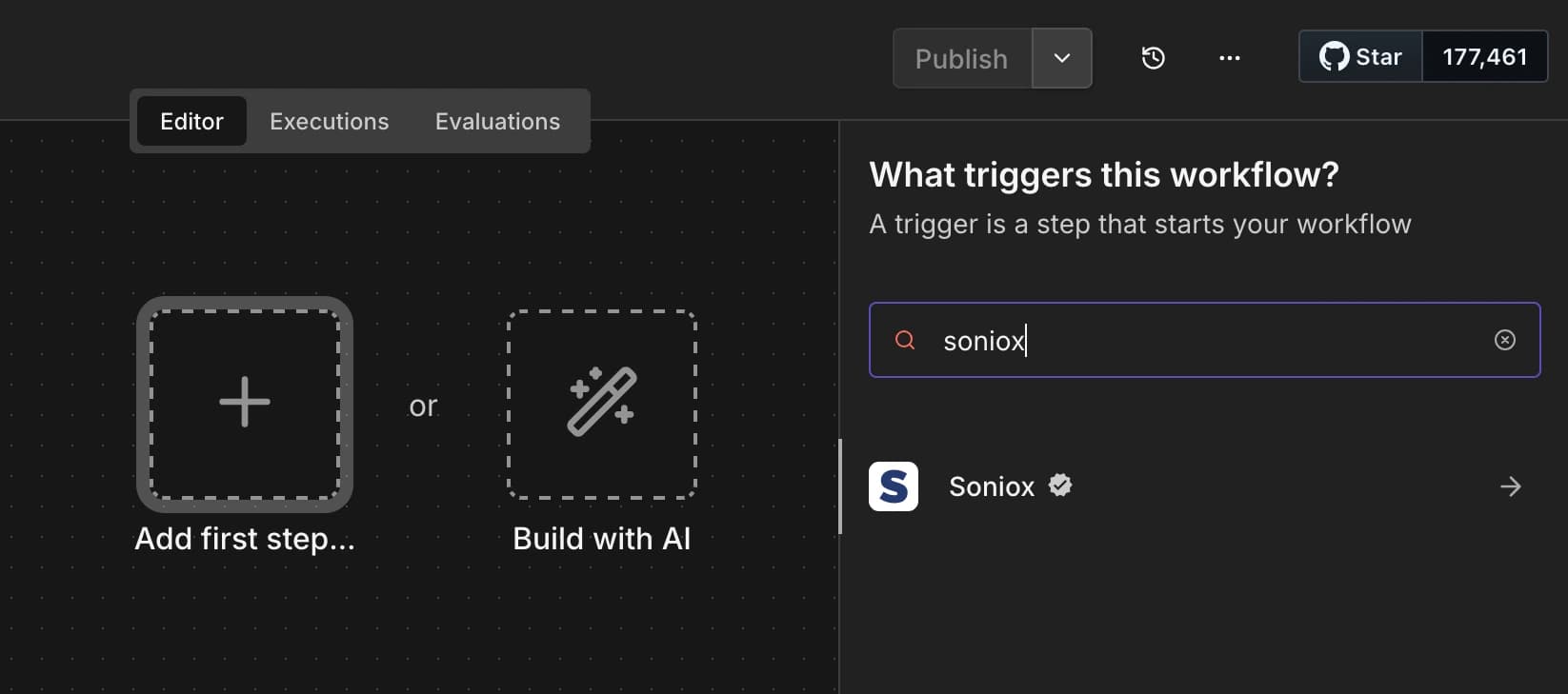
Soniox provides a first-party verified node in the n8n marketplace. Search for "Soniox" in the node panel to find it.
Alternatively, you can install via npm:
Credentials
The Soniox node requires an API key to authenticate.
Get your API key
- Sign in to the Soniox Console
- Navigate to API Keys
- Create a new key or copy an existing one
Add credentials in n8n
- In n8n, go to Credentials > Add Credential
- Search for Soniox API
- Enter your API key
- Click Save
The credentials will be tested automatically. If successful, you're ready to use the Soniox node.
Operations
The Soniox node supports three operations:
Create transcription
Creates a new transcription job from an audio source. You can choose to wait for completion or receive results asynchronously via webhook.
Audio sources:
| Source | Description |
|---|---|
| Binary File | Upload audio from a previous node (e.g., HTTP Request, Read Binary File) |
| Audio URL | Provide a publicly accessible URL to the audio file |
| File ID | Use a file previously uploaded to Soniox |
Get results
Retrieves the status and transcript for an existing transcription job. Use this when processing transcriptions asynchronously.
Delete
Deletes a transcription and its associated file from Soniox. Simply provide the transcription ID — the node automatically fetches the file ID and deletes both resources. Use this to clean up after async workflows.
You must ensure the file is deleted after the transcription is completed. Files and transcriptions stored via the Async API are automatically deleted after 30 days. Check limits and quotas for more information.
Basic usage
Transcribe from URL
The simplest way to transcribe audio is from a public URL:
- Add the Soniox node to your workflow
- Select Create operation
- Set Audio Source to Audio URL
- Enter the URL to your audio file
- Execute the workflow
The node will wait for the transcription to complete and return the full transcript.
Transcribe from binary data
To transcribe audio from another node (like HTTP Request or Read Binary File):
- Connect the source node to the Soniox node
- Select Create operation
- Set Audio Source to Binary File
- Set Binary Property Name to the property containing your audio (default:
data) - Execute the workflow
Polling settings
When Wait for Completion is enabled, you can configure:
| Setting | Default | Description |
|---|---|---|
| Poll Interval (Sec) | 1 | How often to check for completion |
| Max Wait (Sec) | 300 | Maximum time to wait before timing out |
If the Max Wait (Sec) value is too large, the n8n cloud platform may timeout before the transcription completes. For long audio files, consider using async processing with webhooks instead.
Advanced usage
Language hints
The model automatically detects and transcribes any supported language. It also handles multilingual audio, even when multiple languages appear within the same conversation.
If you know which languages are likely to be spoken, you can provide language hints to improve accuracy:
- In the Soniox node, find Language Hints
- Click Add Language
- Enter the language code (e.g.,
en,es,fr) - Repeat for additional languages
See list of supported languages for all available language codes.
Learn more about language hints.
Speaker diarization
Enable Enable Speaker Diarization to identify and separate different speakers in the audio. The transcript will include speaker labels for each segment.
Language identification
Enable Enable Language Identification to include detected language information in the transcript output.
Customization with context
Provide context to help the model better understand domain-specific terminology, names, or phrases.
Simple text context:
- Set Context Mode to Text
- Enter relevant terms or phrases in the Context Text field
Structured JSON context:
For more control, use structured context:
- Set Context Mode to Structured JSON
- Enter a JSON object in the Context JSON field
Learn more about customizing with context.
Translation
Soniox can translate the transcript to another language during transcription.
One-way translation:
Translate the transcript to a single target language:
- Set Translation Type to One Way
- Enter the Target Language code (e.g.,
esfor Spanish)
Two-way translation:
For conversations between speakers of two languages, translate each speaker to the other's language:
- Set Translation Type to Two Way
- Enter Language A (e.g.,
en) - Enter Language B (e.g.,
es)
Async processing with webhooks
For long audio files or high-volume processing, you can use webhooks instead of waiting for completion:
- Set Wait for Completion to false
- Enter your Webhook URL
- Optionally set Webhook Auth Header Name and Webhook Auth Header Value for authentication
The node will immediately return the transcription ID. Soniox will send the results to your webhook when processing completes.
To fetch results later, use the Get Results operation with the transcription ID.
Output options
Output mode
Choose what data to return when the transcription completes:
| Mode | Description |
|---|---|
| Full Response | Returns the complete transcript with all metadata, timestamps, and speaker information |
| Text Only | Returns only the transcribed text as a simple string |
Cleanup and resource management
When you upload binary files, Soniox stores them temporarily. To avoid accumulating unused files, use the cleanup features:
Automatic cleanup (recommended)
When Wait for Completion is enabled, the Auto Delete option is available (enabled by default).
When enabled, the node automatically deletes:
- The transcription — always deleted regardless of audio source
- The uploaded file — only deleted when using Binary File as the audio source (since that's when a file is uploaded)
This keeps your Soniox account clean without extra workflow steps.
Manual cleanup
For async workflows (when not waiting for completion), use the Delete operation to clean up after processing:
- Add a new Soniox node after receiving the webhook callback
- Select Delete operation
- Enter the Transcription ID
- Execute
The Delete operation automatically fetches the transcription details to find the associated file ID, then deletes both the transcription and its file (if one exists).
Example async cleanup workflow:
- Soniox (Create) — Upload file, don't wait.
- Webhook trigger — Receives completion callback from Soniox with
id(transcription ID) - Process the transcript as needed
- Soniox (Delete) — Clean up using the transcription ID from step 2